

Go to https://login.fmtc.com
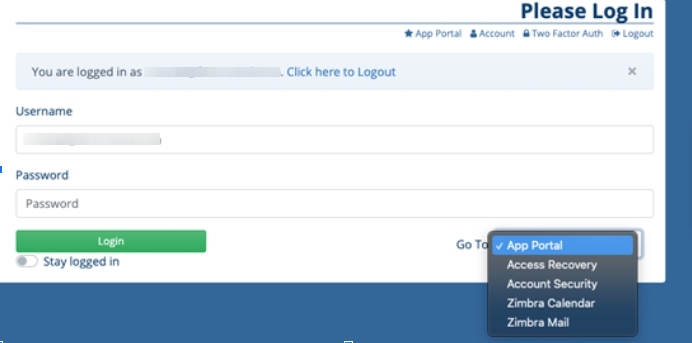
You will use a specific dropdown option when managing your Two Factor Authentication settings.
Make sure Account Security is selected from the dropdown when you log in.
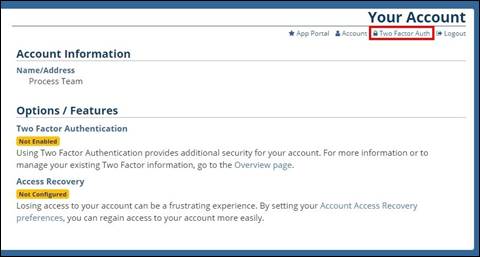
The home screen lists the recovery options as well as if they are set up on the account.
Click the Two Factor Auth option at the top right.
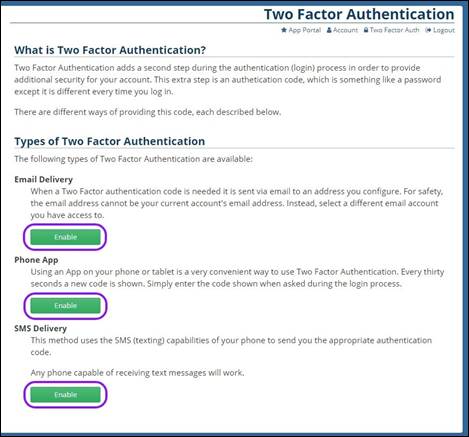
There are three ways to set up Two Factor Authentication.
Phone App: You can use a pre-existing phone app such as Google Authenticator or 2FAS to recieve authorization codes.
SMS Delivery: You will receive a text with the authorization code.
Email Delivery: You will receive an email with an authorization code.
Click the Enable button for the method you would like to use.
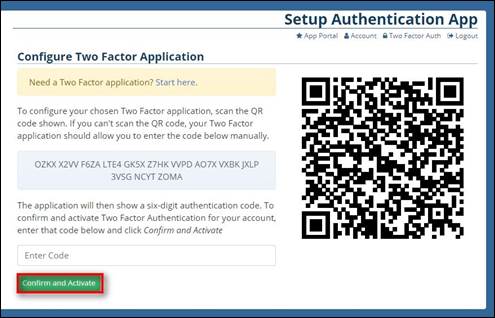
You can use either the QR code or the code on the screen to link the Two Factor App to your Account.
The directions vary depending on the app you choose to use on your device.
Once the Application is linked, you will be given a 6 digit authentication code.
After entering the code, click Confirm and Activate.
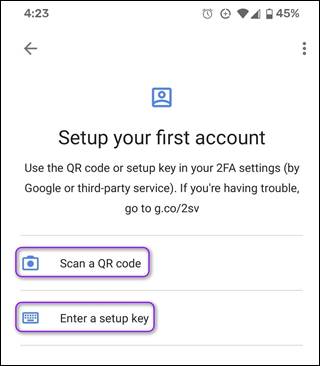
Below is an example of a Two Factor Application Interface (Google Authenticator)
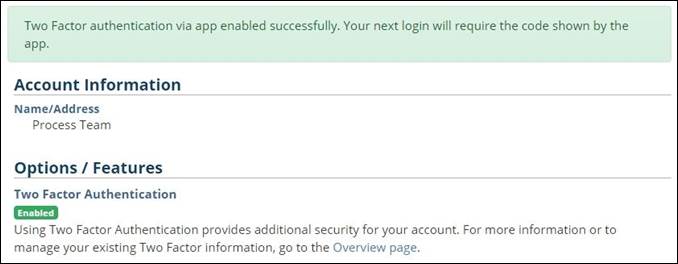
You will then be brought back to the Home screen and there will be a message at the top stating that the registration was successful.
You will now see the Two Factor Authentication option enabled in the Options / Features section.
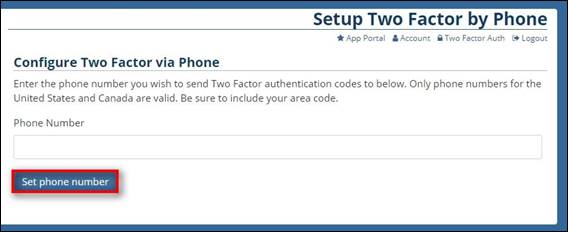
You can set up the account to recieve SMS text messaging.
Enter in the cell phone number you would like to use and click Set phone number.
You will receive a text message with a 6 digit code.
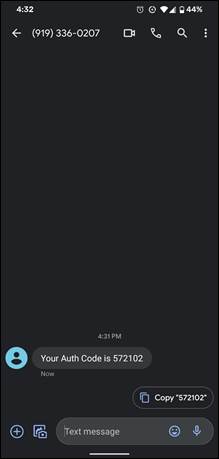
Enter in the six digit code you received via text and click Verify Code.
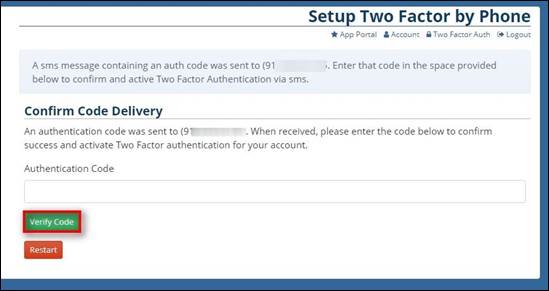
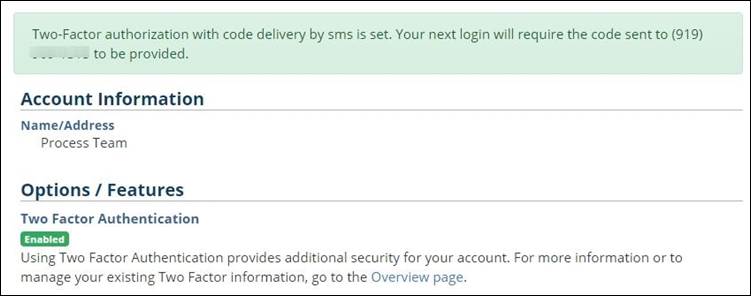
You will then be brought back to the Home screen and there will be a message at the top stating that the registration was successful.
You will now see the Two Factor Authentication option enabled in the Options / Features section.
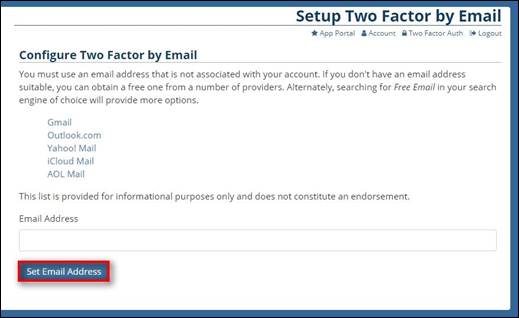
You can use any email address for Two Factor as long as it is not associated with your account.
Once the email address is entered, click Set Email Address.
You will receive a verification code on the email account used.
Enter in the given Auth Code and click Verify Code.
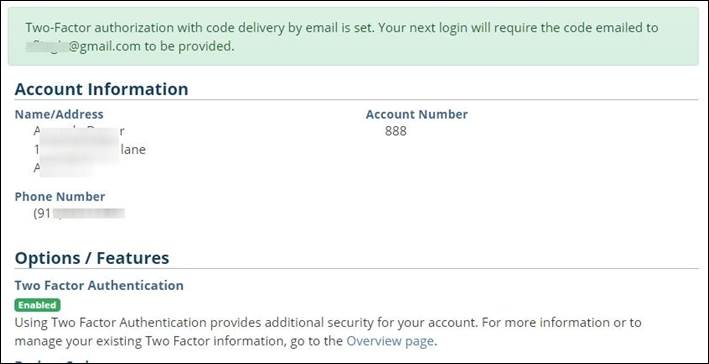
You will then be brought back to the Home screen, showing a message at the top stating that the registration was successful.
You will now see the Two Factor Authentication option enabled in the Options / Features section.
You can disable Two Factor Authentication at any time by logging in and going to the Two Factor Auth option at the top right.
Enter in your Current Password and click Disable
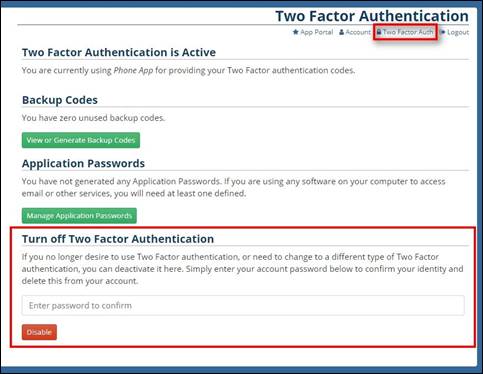
Backup codes are one time use codes that can be generated and used in the occasion that you are unable to get to the code sent by the Two Factor Authentication.
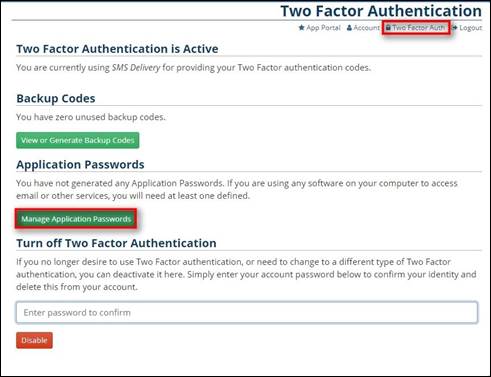
Click the Two Factor Auth option at the top right, then select the View or Generate Backup Codes button.
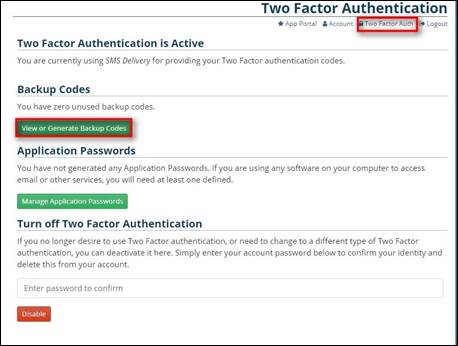
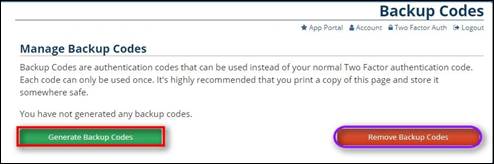
Click the Generate Backup Codes button to generate new codes and the Remove Backup Codes button to remove all codes previously generated.
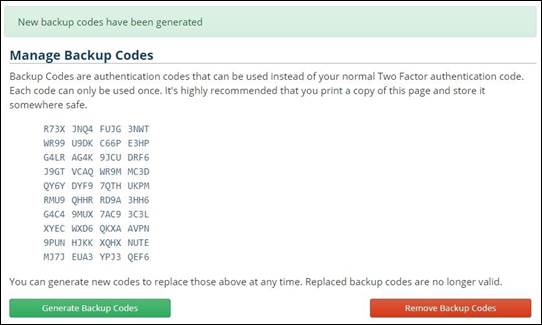
There will be 10 backup codes listed as 16 digit Alphaneumeric passwords. Each will be one time use.
Application Passwords are used instead of your regular password for any Mail Clients (Outlook, Apple Mail, Thunderbird, etc.). If you have opted into Two Factor Authentication for your email you will need to generate an Application Password for each of the Applications/Devices that you are using.
Click the Two Factor Auth option at the top right, then select the Manage Application Passwords button.
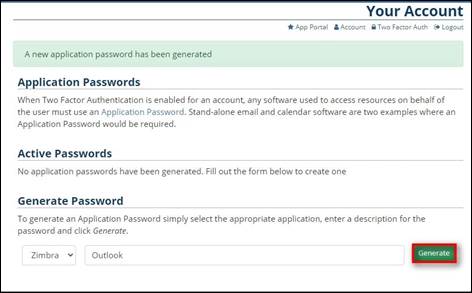
Under the Generate Password Header, you can select the application you would like to set the password for. For your email account, you will need to select Zimbra.
Type in a description of what this password will be for and then click Generate.
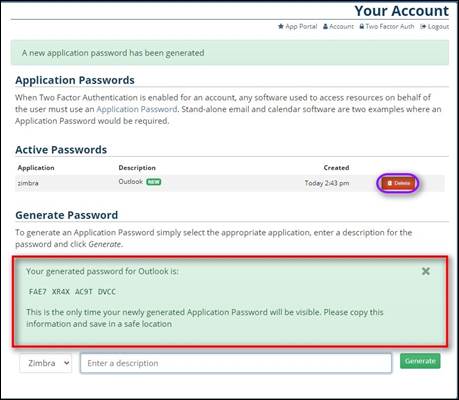
Once the password is generated, you will need to write it down as you will not be able to view the password again once you have left this screen. You will then need to enter the password into your Mail Application. The generated passwords do not contain spaces but are separated into four groups of four to be easier to read.
To remove old passwords, click Delete under the Active Passwords section.
Questions? Contact the FMTC Internet Technicians at 208-452-2000 for assistance or stop by 319 SW 3rd St, Fruitland, Monday–Friday, 8am-5pm.