
Set up your Home Wi-Fi System with the CommandIQ App

The app allows you to easily manage your home or small business Wi-Fi network within minutes. Download the app and take control of your Wi-Fi network today.

Download the app. You can search either the Apple App Store or Google Play Store for: “CommandIQ,” then install it on your mobile device.

icons

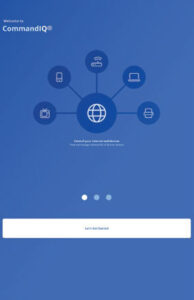
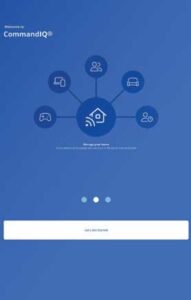
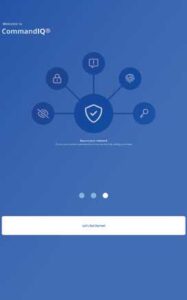
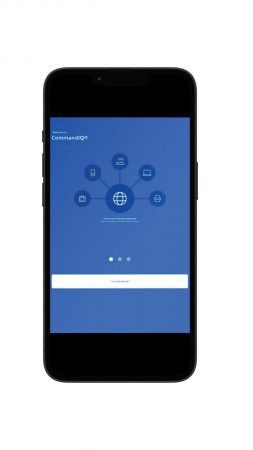
Select “Let’s get started.”

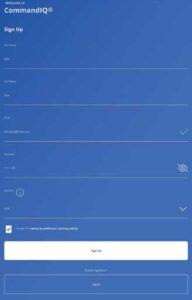
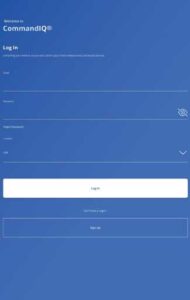
Select “Sign Up” or “Log in” to set up your router to access Wi-Fi controls and protection.
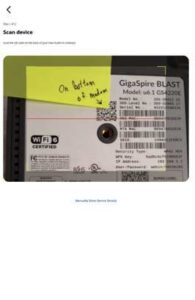
Select “My modem is already setup,” then allow the app to use the camera and scan the QR Code on the bottom of the modem.
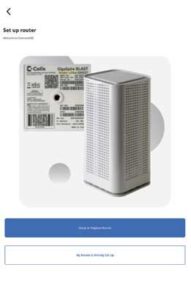
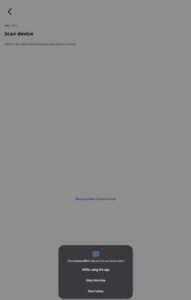
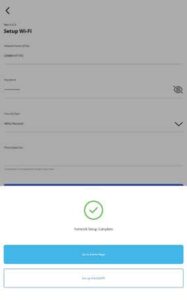
 Select “Start Setup” and skip the “Wi-Fi Setup” as this is done for you. Then select “Go to Home Page” and you are finished with the setup.


Note: If you have issues with connectivity, close the app and reopen it and continue.

Get to know the CommandIQ Wi-Fi App

Create a Guest Network

  • Click on My Network from the Home screen
  • Click the “+” icon
  • Click “Add Network”
  • Select “Guest” from Wireless Network Type dropdown
  • Create your network name
  • Select security type if desired
  • Create your password
  • Share the network via QR code or text

Set up Basic Parental Controls

  • Click the People tile on the Home screen
  • Tap the “+” icon
  •  Add a name (and photo, if desired)
  • Check the box for any devices associated with that person
  • Click edit on the person’s profile when devices need to be added late
  • Swipe the Internet Access toggle off to pause all devices connected to the profile
  • Set active hours per device or person

Update Wi-Fi Network Name and Password

  1. Press “My Network” on the Home Screen
  2. Select the network you wish to update the name or password for
  3. Press “Edit” and update your information

Note: Changing your SSID or password will require you to reconnect all your wireless devices previously connected to that network.

Run a Speed Test

  • Select “My Network” from the Home screen
  • Select “Bandwidth Test”
  • Select “Run Test”
  • Run a Speed Test

The speed test will first run between the GigaSpire BLAST and the Internet and then will conduct a speed test between any mesh units and the GigaSpire BLAST. Results will show as a notification in the app and update on the screen.

View Devices on Your Network

  • Select “Things” from the Home screen

Alerts

To view alerts, click bell icon from the Hom screen.

To edit alerts settings, click on the setting icons in the top right of the Alerts screen or use the menu Settings: “Alerts”

24/7 Support

Local Internet, Technicians, Customer Care & Installation Teams

commandIQ

Questions? Call 208.452.2000 or 866.452.4241

We are currently experiencing connection issues with FMTC email and are diligently working on a resolution.
+ +